
Select the My Wallet option from the bottom of your app. Half way down the My Wallet page you will find the your latest activity section.
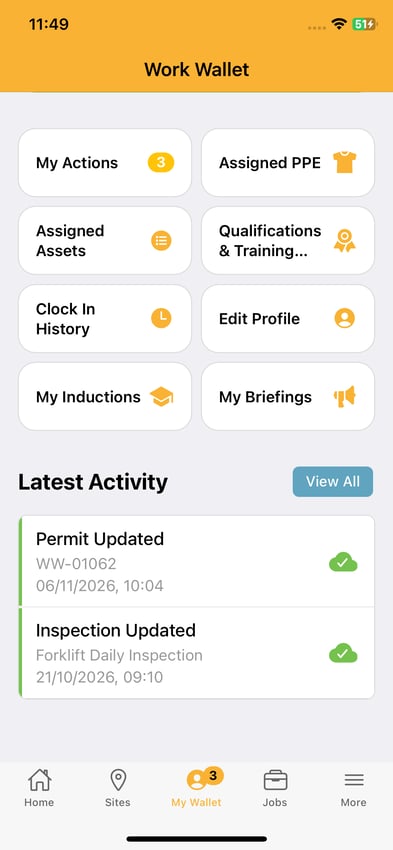
Next each item there will be an icon telling you it's status. A green cloud with a tick means that the changes you made have updated on the cloud. An orange cloud means that the activity is saved your device but hasn't updated on the cloud.
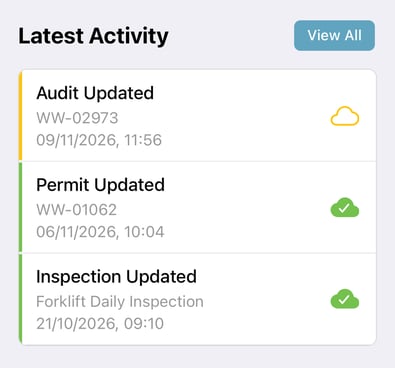
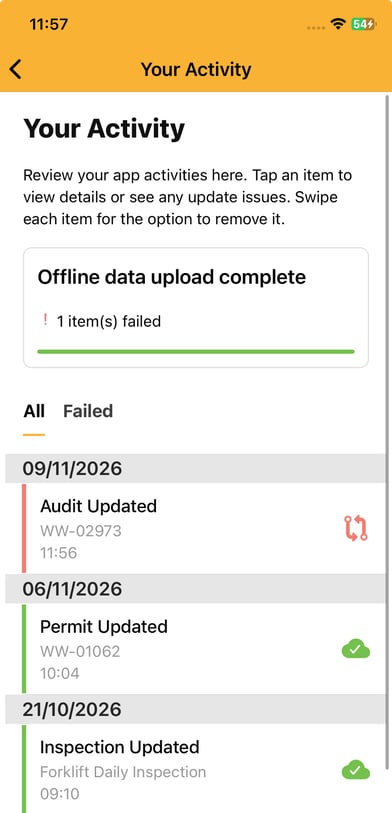
Once you have an internet connection you can force the content to sync by clicking on the item. You can also select view all to see more details. If the update failed it will tell you and you can click the activity to retry.
You will then be presented with this screen. Which lets you know that the version on your device is different to the one on the cloud and asking you which one you want to keep.
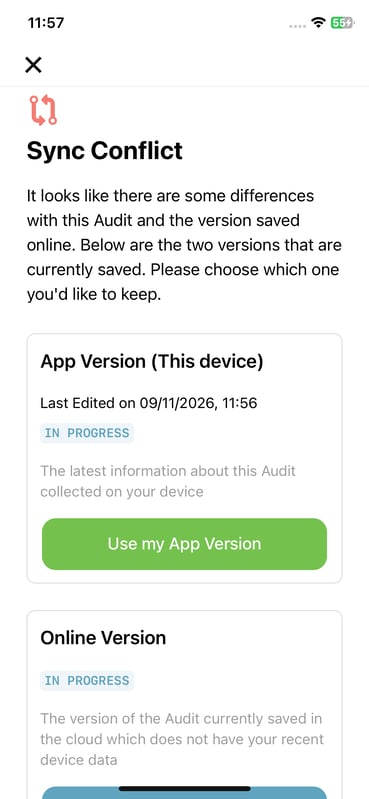
Most of the time it will be the app version you want to keep (especially if you have been working offline). Select Use my app version and it will update the cloud version to match.
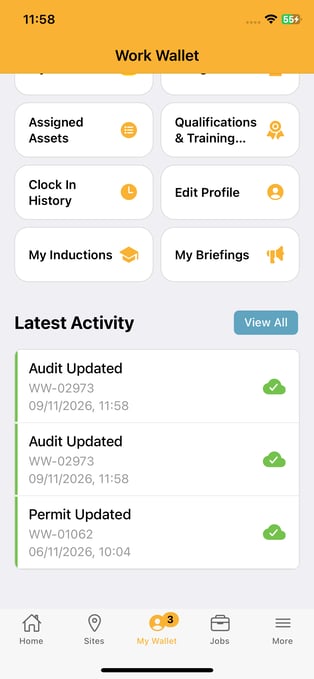
Now all my activity has updated on the cloud.